A Note for Rostered Districts
This article is for non-rostered districts only. If your district is currently using rostering, please see Viewing and Managing Classes (Rostered Districts).
Navigating to Classes
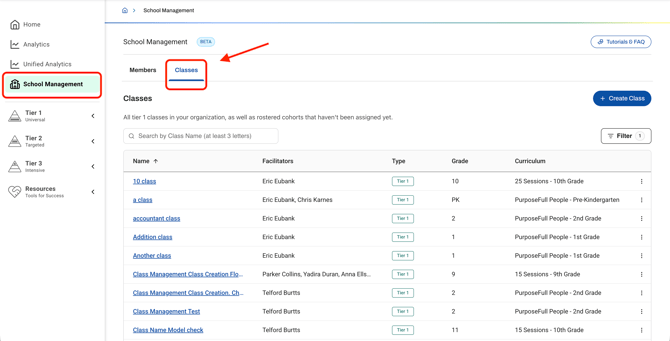
- In the left navigation bar, select School Management.
- At the top of the page, toggle from Members to Classes.
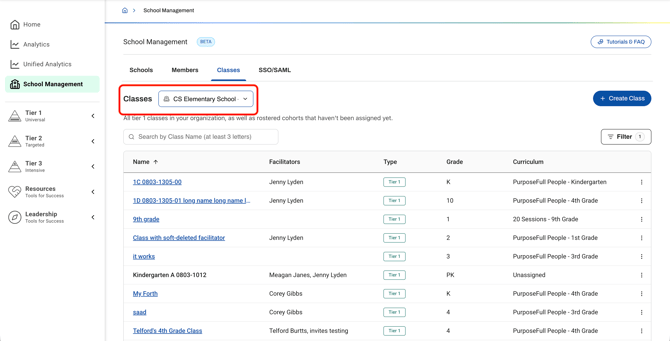
District Leads: Before reviewing classes, make sure you are viewing the correct school. Use the dropdown menu next to Classes to select the school whose classes you want to see.
Understanding the Classes table
The table lists all classes in the selected school.
|
Column |
What it shows |
|---|---|
|
Class name |
The name of the class. Select the blue, underlined name to go to the class's curriculum. |
|
Facilitators |
The staff members who facilitate the class. |
|
Type |
The type of class. |
|
Grade level |
The grade level of the class. |
|
Curriculum |
The curriculum assigned to the class. Unassigned means no curriculum has been chosen yet. |
Filtering classes
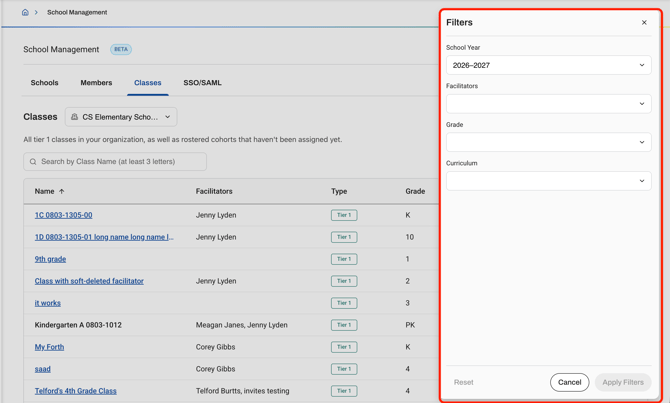
Select Filters on the right-hand side of the table, then narrow the list by any of the following:
- School year: view classes from a specific school year.
- Facilitators: view classes led by specific staff members.
- Grade level: view classes for specific grades.
- Curriculum type: view classes using a specific curriculum.
View a class
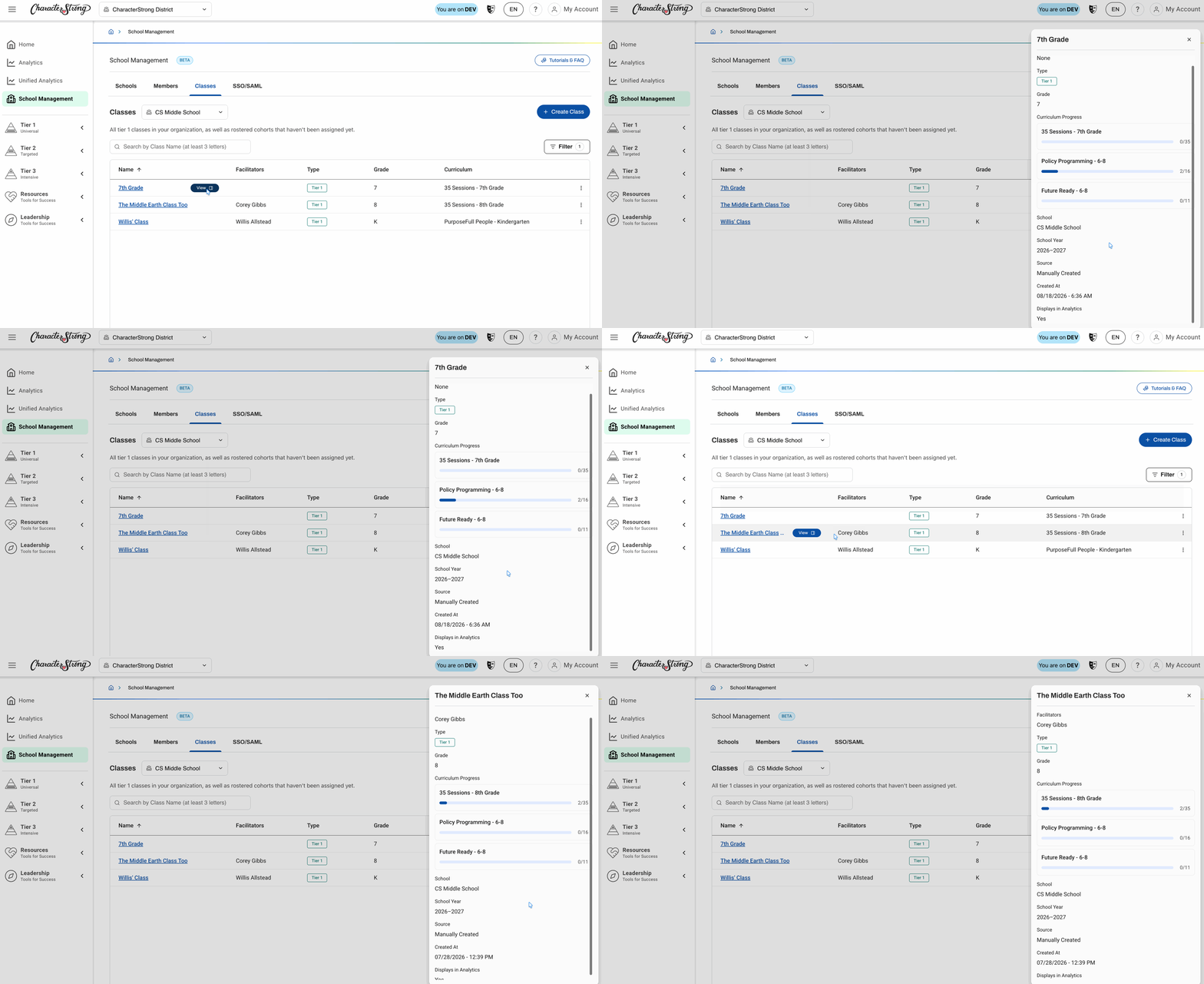
Select View next to a class to open a side drawer with details about it:
- Facilitators, class type, and grade level
- The curriculum in progress, for a quick glance at progress
- The school and school year the class belongs to
- The source (how the class was created) and when it was created
- Whether the class displays in your analytics
Class menu (three dots)
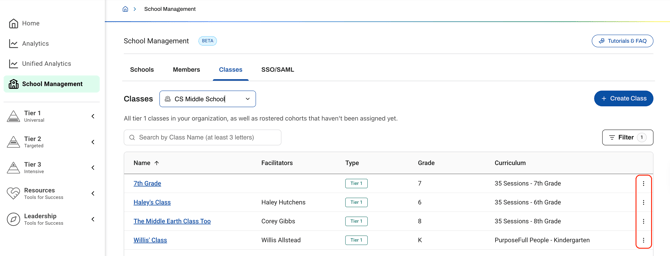
Select the three dots on the right-hand side of a class to open its menu:
- Edit details: Update the class name, facilitators, grade level, or curriculum. For secondary classes, you can also update sessions.
- View sessions: Go to the class's curriculum to see its sessions.
- Delete class: Permanently removes the class from the system. Leads have permission to delete any class.
Creating a class
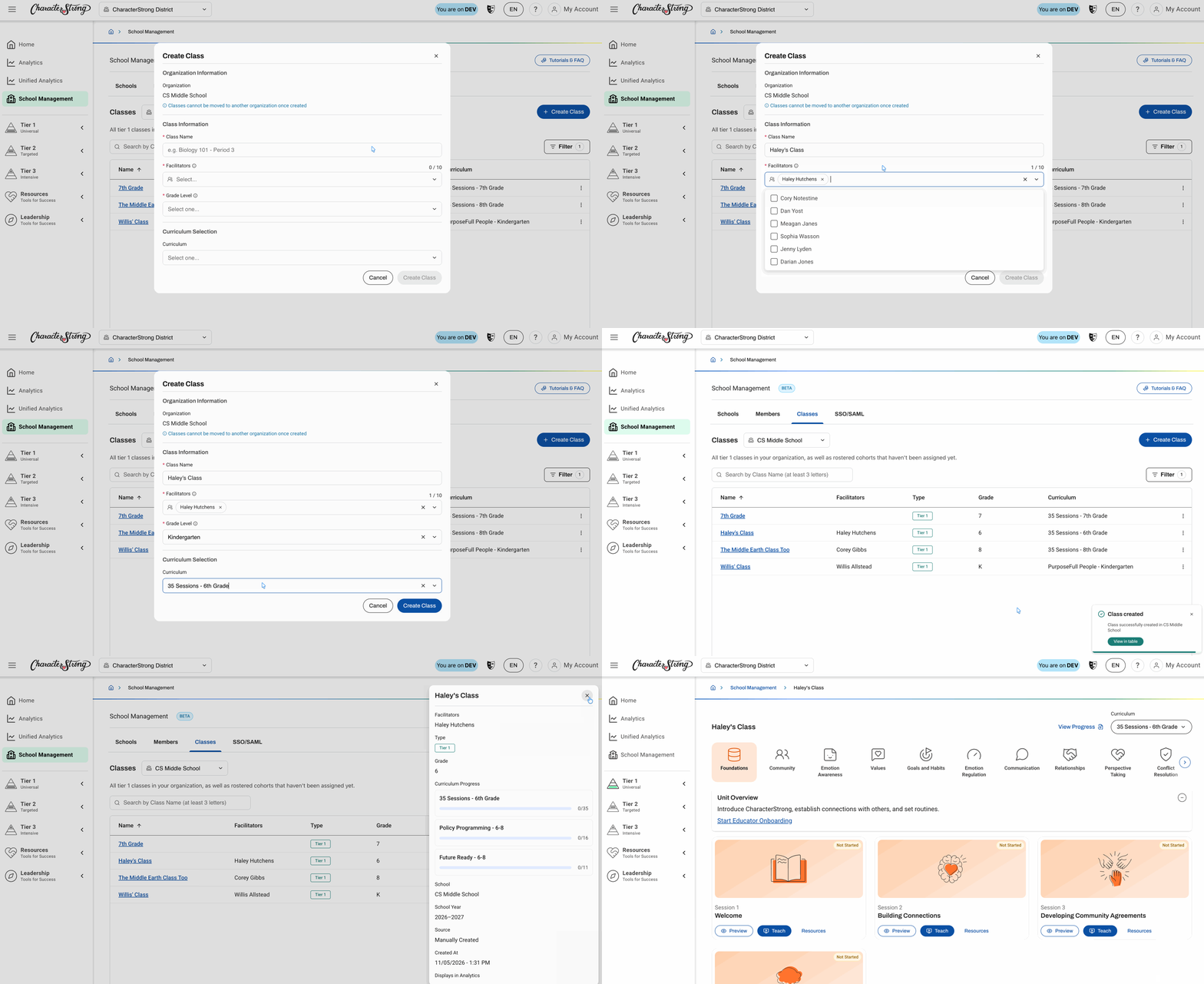
Leads can create a class for any user from the Classes page.
- Select "+ Create Class"
- Add Class Details
- Class Name
- Facilitators
- Grade Level
- Curriculum
Need Help?
If you need any additional account support:
- Email our Support Team at support@characterstrong.com
- Connect with your Customer Success Manager for personalized guidance
Don't know who your Custom Success Manager is? Reach out to support@characterstrong.com