Step 1: Check My Supports
- From the Delivery Dashboard, click Students.
- Select My Supports.
- Review your student list to confirm the student is not appearing.
If the student does not appear, proceed to the next step.
Step 2: Search Under School Supports
- Navigate to School Supports.

- Search for the student by name.
- If the student does not appear here, the student may not currently be created under your school. Proceed with creating the adding the student.
- If the student does appear, continue to Step 3.
Step 3: Review the Student’s Support Types
- Click into the student’s profile.
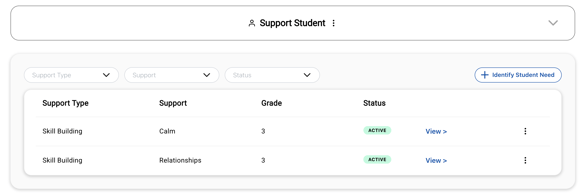
- Review the student’s support types.
- Check whether the student is placed in a group under the appropriate support type.
- Confirm that the group listed is the one you are facilitating.
Step 4: Create or Update the Support Group (If Needed)
If the student is not in the correct group, you will need to:- Identify the appropriate student need.
- Create the support group associated with that need.
- Ensure the group matches the Tier 2 support you are facilitating.
Step 5: Add Yourself as a Facilitator
If the support group already exists:
- Click View for the support group.
- Select the three dots next to the group name.
- Choose Edit Group.
- Add yourself as a Facilitator.
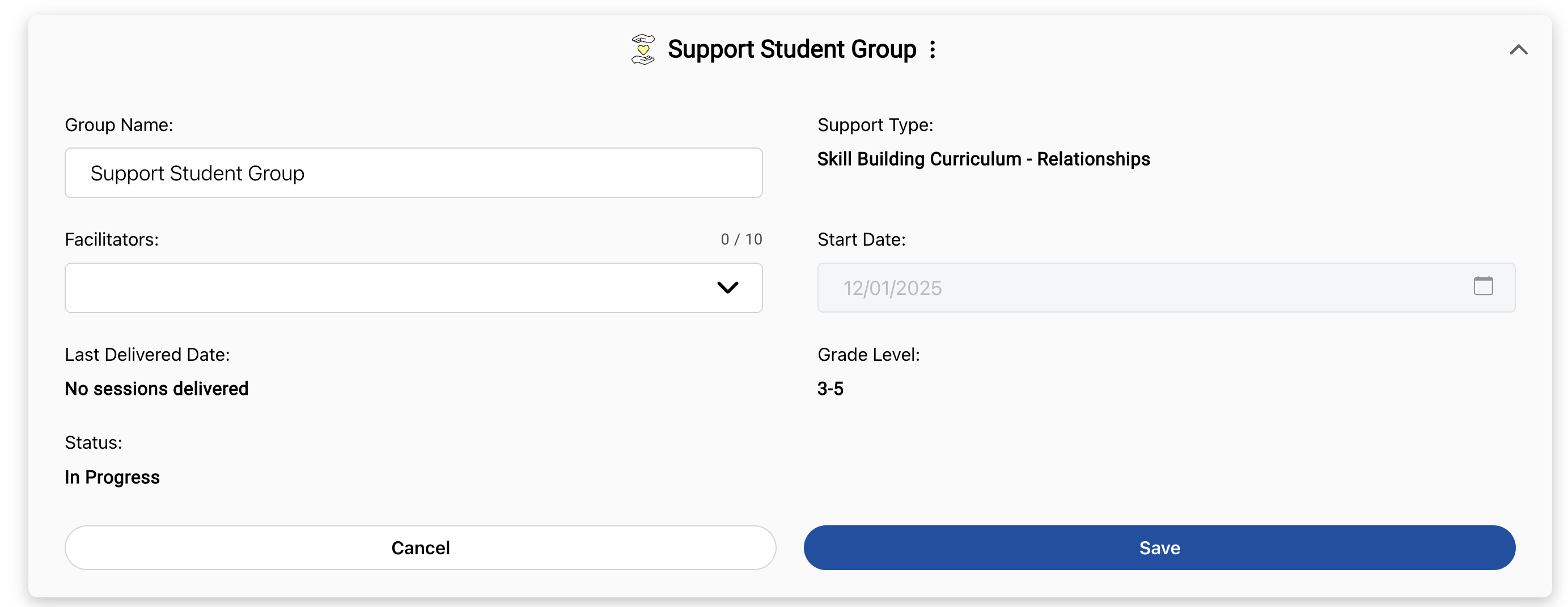
Click Save.
Still having trouble? Please reach out to us at support@characterstrong.com!