How to mark a lesson complete
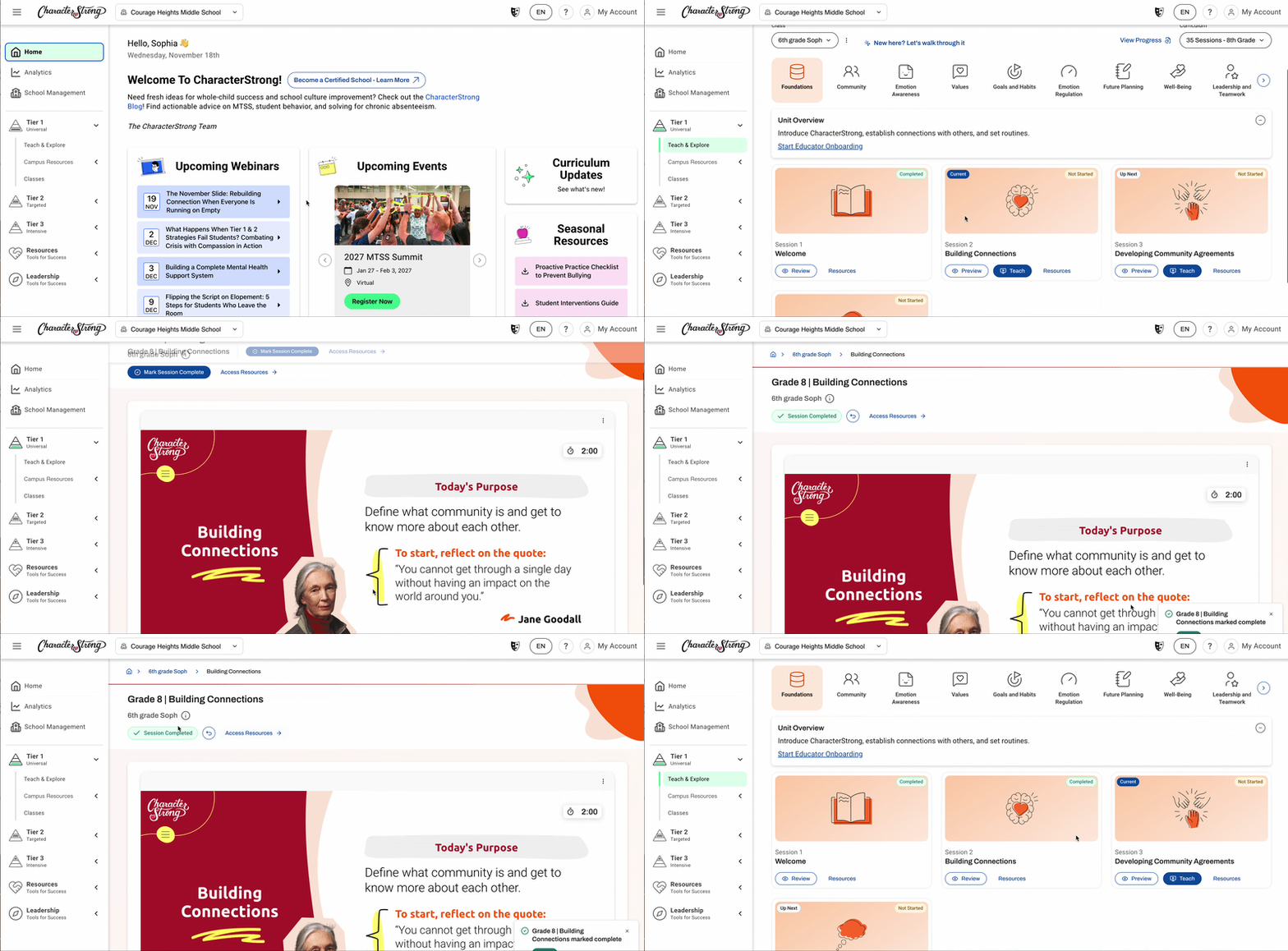
Mark a session complete with the Mark Week Complete button once you have delivered it.
- Open the left-hand sidebar.
- Open the Tier 1 toggle.
- Click Teach and Explore.
- If you already have a class created you can proceed to your desired session. If you don't have one yet, click this link for the step-by-step on how to create one!
- Go to the next session you need to deliver and click Teach.
- When the whole session is done, click Mark Week Complete in the top left-hand corner. The page then shows Week Completed.
**If you clicked it by accident, use the undo button at the bottom of the screen.
How to undo lesson completion
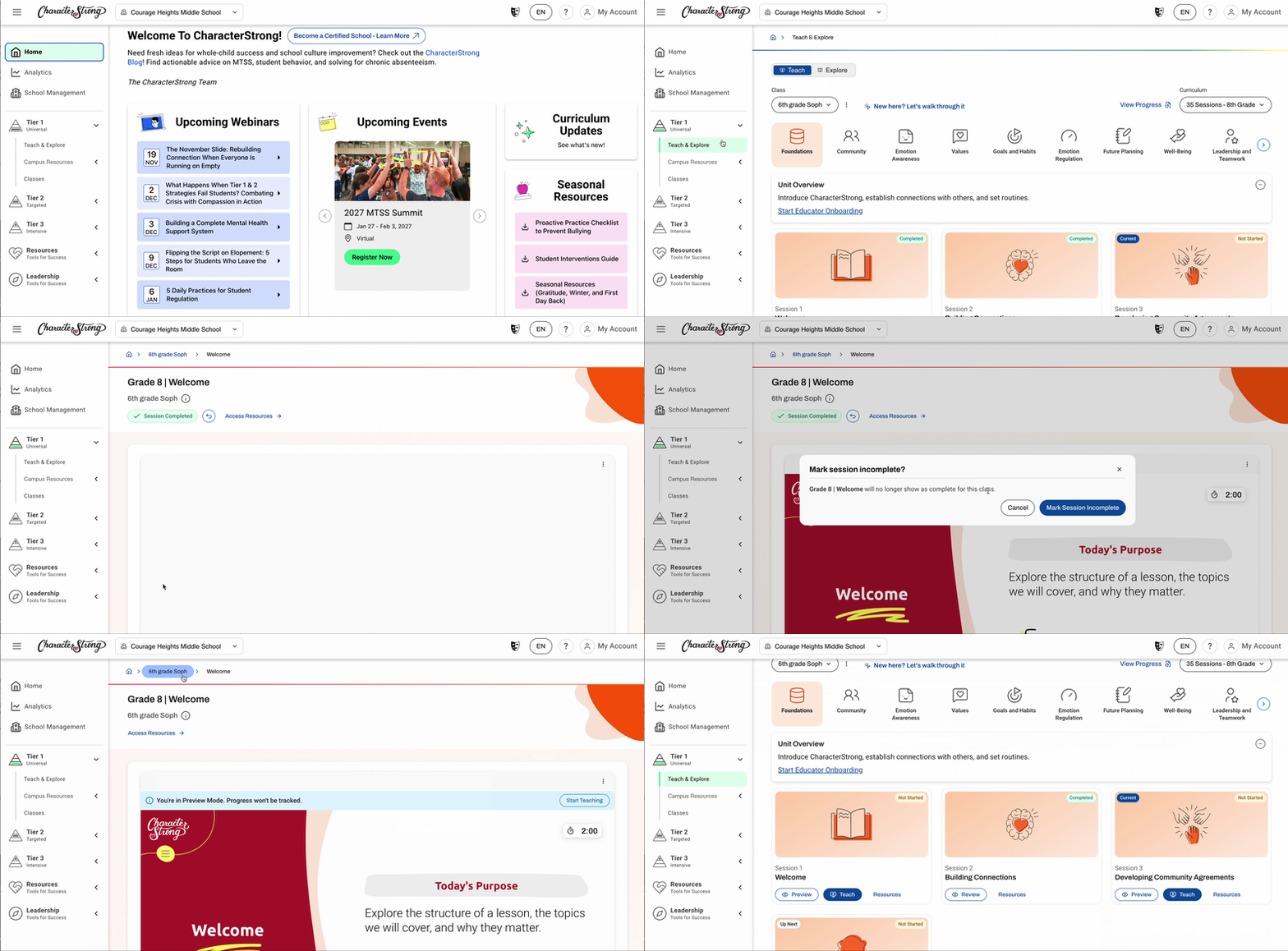
If you marked a session delivered by mistake, or want to teach it again, mark it incomplete.
- Open the left-hand sidebar.
- Open the Tier 1 toggle.
- Click Teach and Explore.
- Find the previous lesson you taught and click Review.
- Next to Week Completed, click the small arrow to open Mark Incomplete.
- A pop-up warns that this will no longer show as a completed class. Confirm by clicking Mark Week Incomplete.
The session is now undelivered. Teach the lesson as normal and mark it complete when you finish.
Please note: Undelivered lessons will be removed from the completed sessions in the analytics section. EX: If you mark a lesson complete, undo the delivery, then mark it complete again, this lesson will ONLY count as 1 completion under analytics.
Need Help?
If you need any additional account support:
- Email our Support Team at support@characterstrong.com
- Connect with your Customer Success Manager for personalized guidance
Don't know who your Custom Success Manager is? Reach out to support@characterstrong.com