
Steps to Edit a Student's Informant
-
Go to the Student Account
- Locate and select the student whose informant you wish to edit.
-
View Student Supports
- In the student’s account, find and open the list of supports assigned to that student.
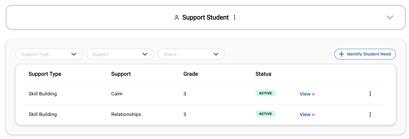
3. Select the Tier 2 Group
-
- Identify and click on the group for which you want to change the informant.
- Click View for that group.
-
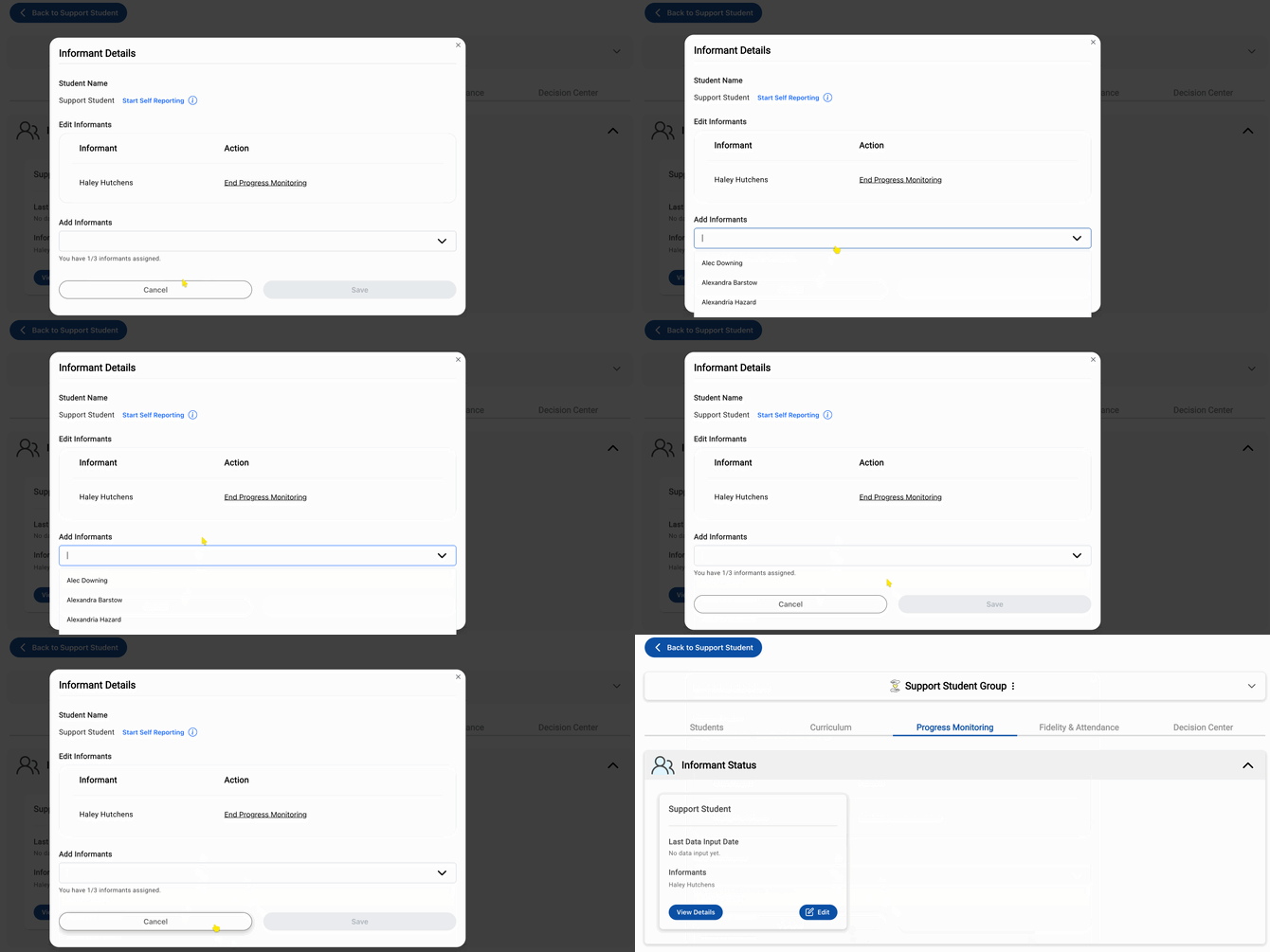
- Within the group page, look for the Progress Monitoring section.
- Under this section, locate Informant Status.
5. Edit the Informant
-
- Click on the Informant Status button.
- Here, you can:
- View current informant details.
- Edit existing informants.
- Add new informants to the student.
- If you need to remove an informant, select End Progress Monitoring next to their name.
Still need support? Reach out to us at support@characterstrong.com!