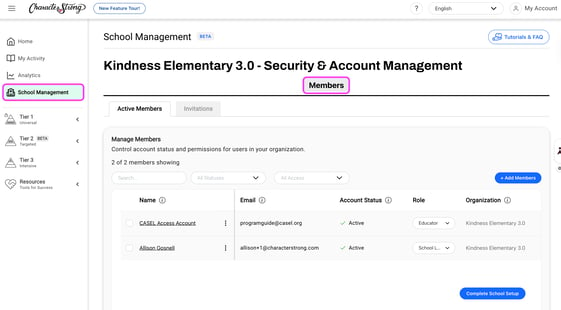
1. On your dashboard, select 'School Management'
2. Select 'Members' tab
3. Scroll to the bottom of the page
4. Select the button 'Select All Users' or select the members you'd like to edit

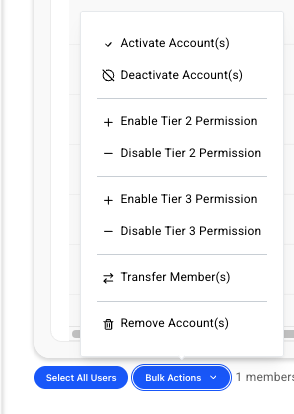
5. Select the button 'Bulk Actions'

6. Decide the action you'd like to make for the selected users