
Who Can Update a Student’s Grade Level?
Grade levels can be updated by:
- District Leads
- School Leads
- Users with Tier 2 permissions
A Note for Rostered Districts
If your district is rostered, student grade levels are updated automatically through your rostering integration. The steps below are for students who were manually added to the platform.
How to Manually Change a Student’s Grade Level
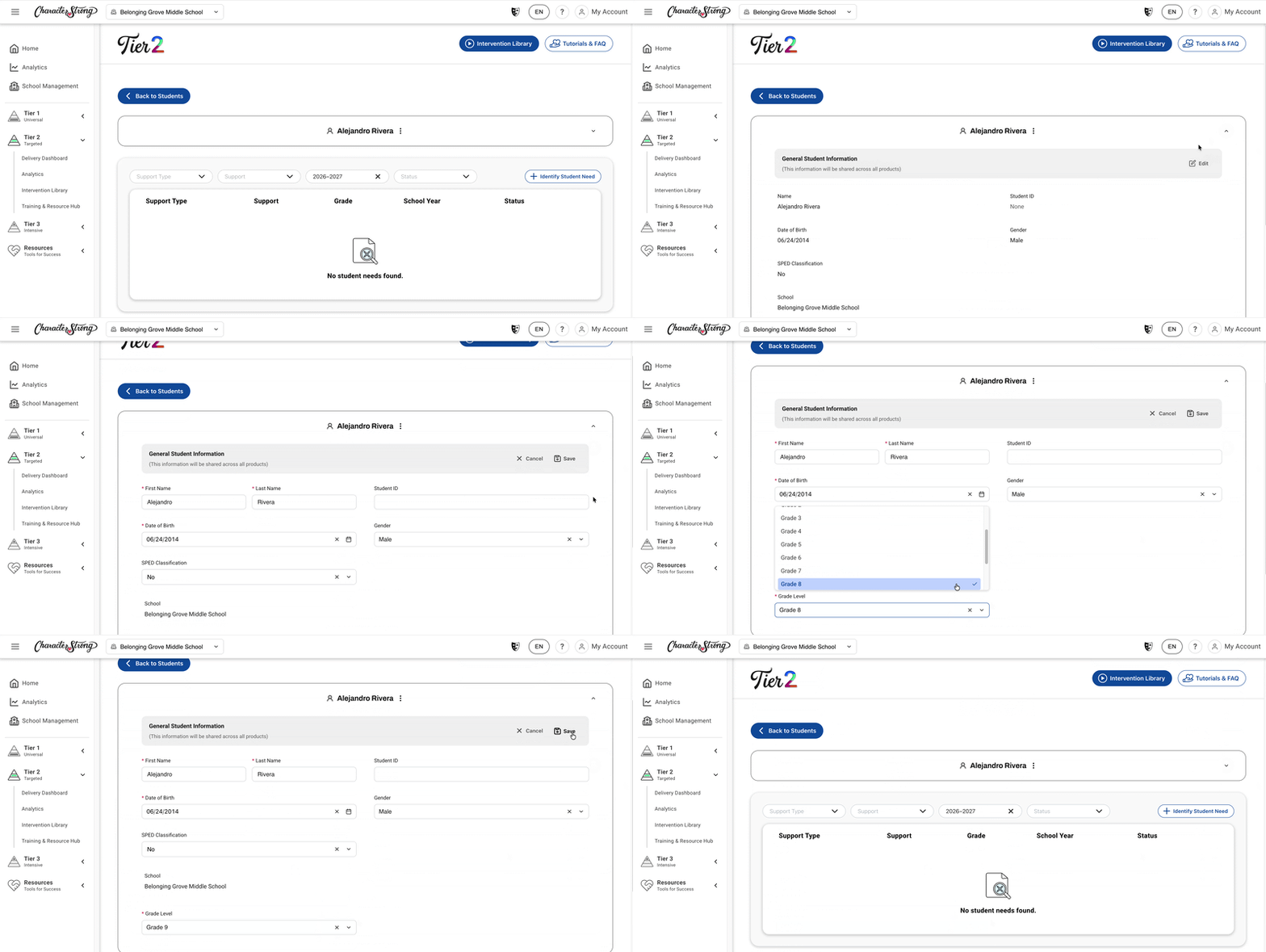
- Navigate to Tier 2 and select Delivery Dashboard.
- Click Students.
- Select your student from either:
- My Supports, if you are listed as a facilitator for the student, or
- School Supports, to view the profiles of all students at your school.
- Open the student’s profile.
- Click the drop-down menu and select Edit.
- Scroll down to the Grade field and select the student’s new grade level
- Click Save.
Confirming the Change
- After saving, refresh the page.
- The student’s profile will now show the updated grade level at the same school.
Tip: While you’re in the Edit screen, you can also correct other student details, such as gender, before saving.
Need Help?
If you need any additional account support:
- Email our Support Team at support@characterstrong.com
- Connect with your Customer Success Manager for personalized guidance
Need additional support? Please reach out to us at support@characterstrong.com!