
Users can now be enrolled in more than one school within a district! This article walks through how a district lead can enroll a user to multiple buildings (schools), and how that user accepts the invitation to become a multi-org user.
Are you a District Lead needing to assign yourself to one or more buildings? CLICK HERE for more information!
Steps:
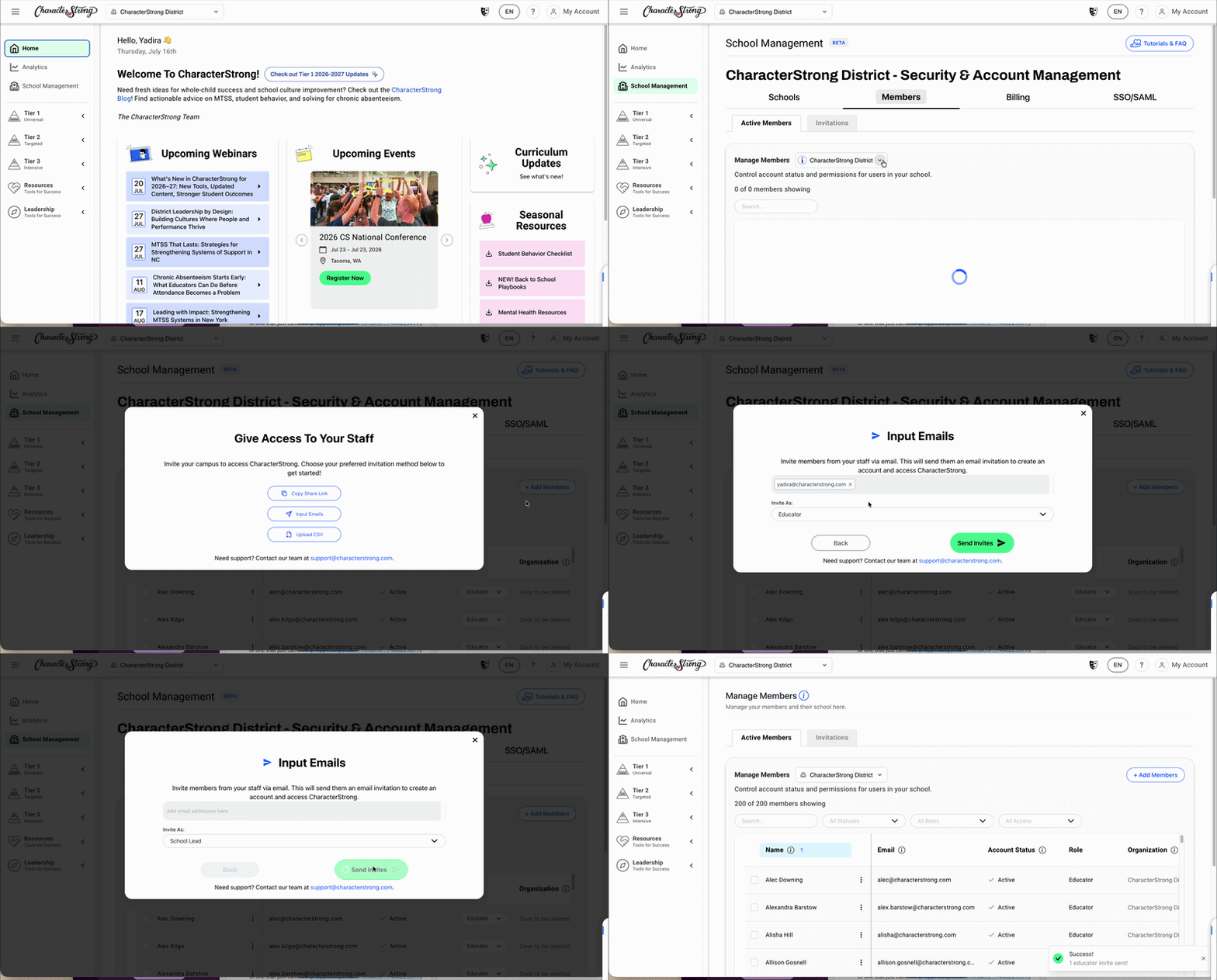
- Navigate to the School Management tab on the left-hand sidebar, then go to the Members section.
- Use the Manage Members drop-down selector to locate the school you want to enroll the user to (e.g., "Interns").
- Click Add Members. You can either copy the share link for the school, input the user's email, or upload a CSV.
- Enter the user's email, select their role (Educator or School Lead), and click Send Invite.
- Once sent, the user will receive an email letting them know there's a request for them to join an organization.
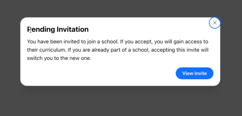
- When the user logs in, they'll see a pending invitation pop-up letting them know they've been invited to join a school.
- The user clicks the icon in the top right-hand corner of the curriculum site, navigates to Schools, and will see the pending invitation there.
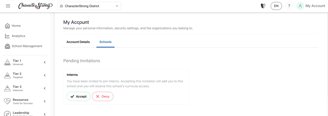
- The user can Accept or Deny the invitation.
- Once accepted, a success message confirms the invitation was accepted.
- The newly added school will now appear in the context selector in the top left corner, allowing the user to switch into that school.
Result: The user is now a multi-org user, with access to all schools/buildings they've been enrolled in, switchable via the context selector.
Time spent in the platform is tracked per school based on whichever org is selected — important context for district-level reporting conversations
Need Help?
If you need any additional account support:
- Email our Support Team at support@characterstrong.com
- Connect with your Customer Success Manager for personalized guidance
Don't know who your Custom Success Manager is? Reach out to support@characterstrong.com