
-
Log in to Your CharacterStrong Account
Visit the CharacterStrong website and sign in using your individual login credentials. -
Navigate to the School Management Section
On your dashboard, click on the School Management tab. Then, click on the Members tab.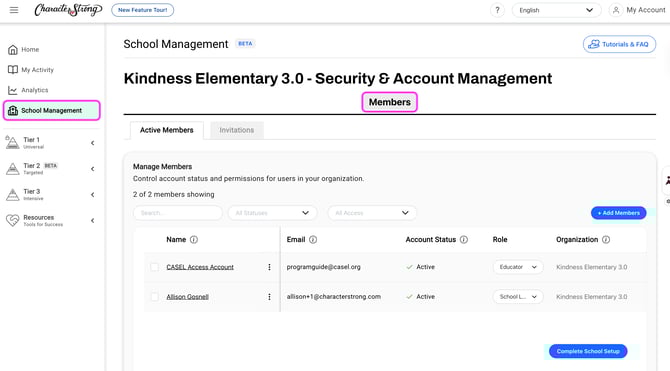
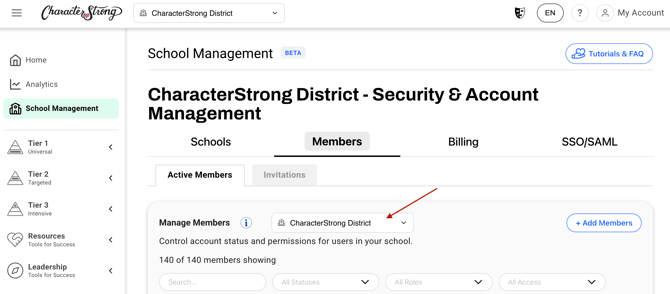
District Leads: Sending invites from the Members tab invites users to create accounts at the district level. To send school-specific invites, navigate to the dropdown menu under the members table and click the school you would like to manage members for!
-
Add New Members
Click the "+ Add Members" button to open the options for inviting new members.
-
Choose Your Invite Method
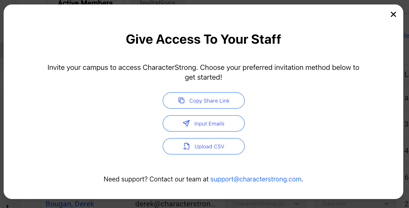
You will see several options for inviting staff members. Choose one of the following methods:- Copy Share Link: Copy the provided email message that includes the invitation link.
- Input Emails: Manually enter the email addresses of the educators you wish to invite, and select their role.
- Upload CSV: Download the provided CSV template, fill it out with the necessary information, and upload the completed file.
Click here to download a PDF version of this walkthrough.
NOTE: Inviting your staff is only available with a School Lead or District Lead individual account. If you do not have an individual account with these permissions, please reach out to support@characterstrong.com.
Need Help?
If you need any additional account support:
- Email our Support Team at support@characterstrong.com
- Connect with your Customer Success Manager for personalized guidance
Don't know who your Custom Success Manager is? Reach out to support@characterstrong.com