
1. Navigate to the CharacterStrong Homepage
Start on the homepage and click the three horizontal lines (☰) in the upper-left corner to open the side navigation menu
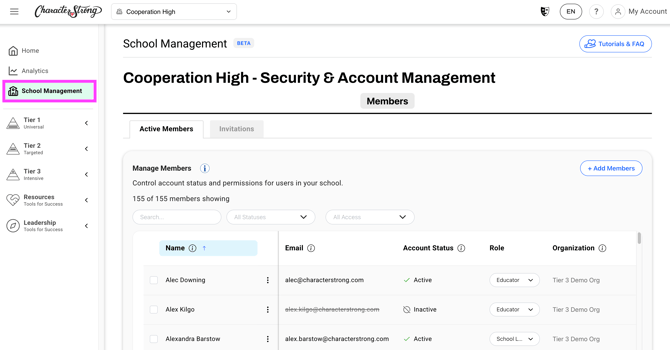
2. Click School Management
To Add Members:
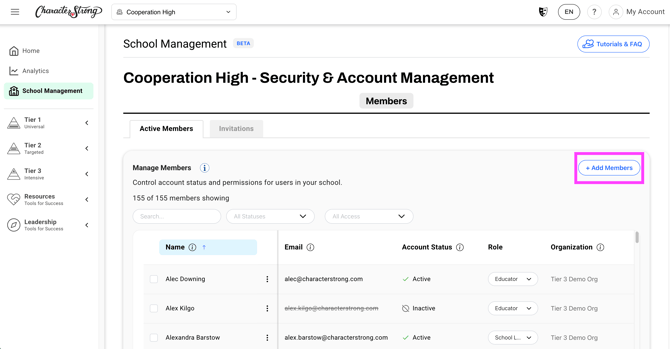
- Click +Add Members, then either Copy Share Link, Input Emails, or Upload CSV to add members to the selected organization
To Remove Members:
-
To remove a single member:
- Click the three vertical dots (⋮) next to the member’s name (also known as the kebab menu)
- Select Remove Member from the dropdown menu
- To remove multiple members:
-
-
Check the names of users you want to bulk-remove
- Scroll to the bottom of the page
- Select Bulk Actions> Remove Members
-
Need Help?
If you need any additional account support:
- Email our Support Team at support@characterstrong.com
- Connect with your Customer Success Manager for personalized guidance
Don't know who your Customer Success Manager is? Reach out to support@characterstrong.com