Getting to the Curriculum
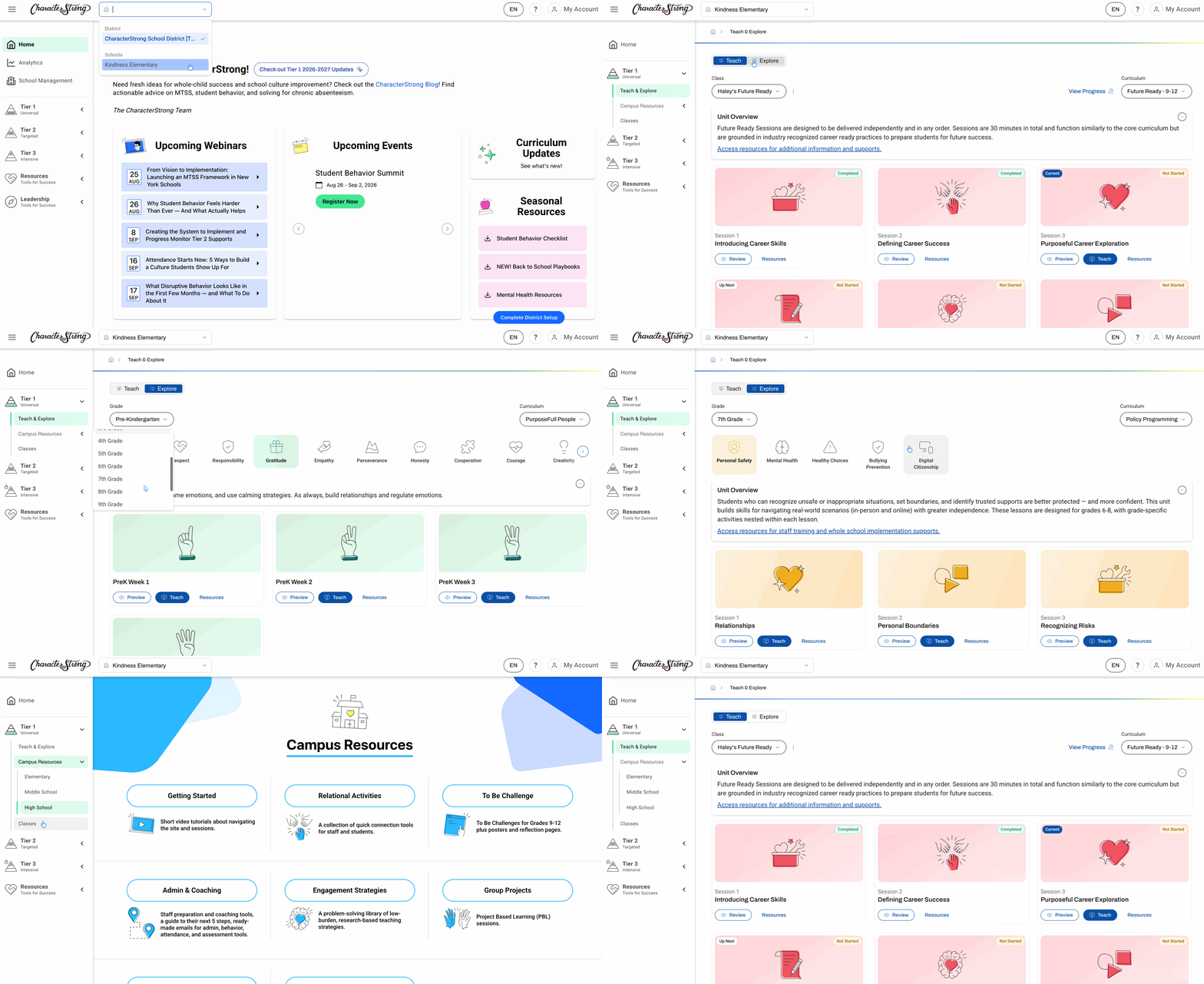
- On your account, click Tier 1.
- Choose either Teach or Explore.
| What it's for | |
|---|---|
| Teach | Create classes and deliver lessons to a specific class |
| Explore | Browse and preview the full curriculum |
Which should you use? We recommend using Teach and setting up a class for the best experience delivering content. Use Explore to view and preview curriculum for planning purposes.
Explore has the same curriculum as Teach — you just can't mark a lesson as delivered without a class created.
Note: Each class is associated with one single grade level. If you need support creating a class, please refer to this article.
Navigating the Curriculum Page
Left-hand side — Grade level
Switch between the grade levels you have access to (for example, Pre-K–5, 6–8, or 9–12). This is also where you'll switch between PurposeFull People and Tier 1 Secondary lessons.
Right-hand side — Curriculum
Select the curriculum you want to view:
- Tier 1 Secondary: Core Curriculum or Policy Programming
- Purposeful People: Purposeful People or Policy Programming
Categories
Use the icons with titles above the sessions to toggle between curriculum categories. Click into any category to view its sessions.
Campus Resources
Campus resources are also available under Tier 1. You'll see all resources connected to the grade levels you have access to. Click into each one to find the resources specific to your curriculum.
Need Help?
If you need any additional account support:
- Email our Support Team at support@characterstrong.com
- Connect with your Customer Success Manager for personalized guidance
Don't know who your Custom Success Manager is? Reach out to support@characterstrong.com